
Testing Offline Counterpoint
Offline Counterpoint is a great tool in case you lose connection to your Counterpoint server. It allows you to continue ringing tickets and sync them to your Counterpoint server when connection is restored.
Occasionally, the communication between Counterpoint and the offline databases on your Point of Sale workstations breaks down. If the communication fails and you lose connection to your server, nothing can be done until connection is restored. Payroc recommends testing Offline Ticket Entry at least once a month to ensure that you always have a way to ring transactions. Select a day (e.g. First Wednesday of the month) and make the testing part of your routine.
Testing Offline
1. Double-click the NCR Counterpoint Offline icon on the desktop.

NOTE: The shortcut might also be in a folder marked Offline or in your start menu. If you are not sure if you have offline or where to find it, please contact Payroc POS Point of Sale support
2. Log in with your Counterpoint credentials
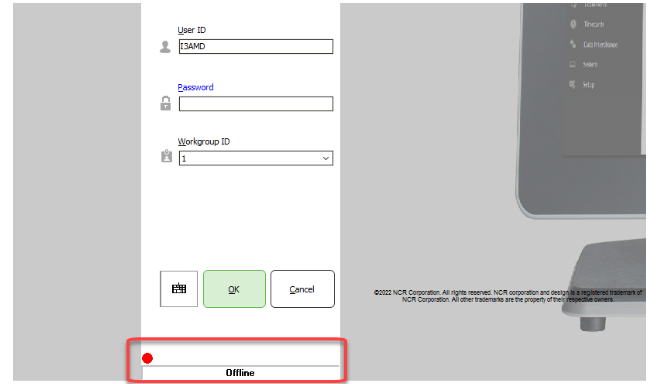
3. Open a Touchscreen Ticket Entry
4. Create a transaction with a newer item and put it on hold
5. Make a note of the hold number
6. Close Counterpoint Offline
7. Wait 15-30 minutes for syncing to occur
8. Log into normal Counterpoint
9. Open Touchscreen Ticket Entry
10. Try to recall the hold
11. Delete the hold
12. Repeat for all Point of Sale stations with offline
Contact Payroc Point of Sale support if the test fails in one of these areas:
- Cannot log in to Offline
- Item not on file error for newer item
- Hold not available in online Counterpoint after a half hour
